
Orion Pan and Tilt Camera SD Card Error
We are aware of an issue impacting users of the SC030HA Orion Pan and Tilt Outdoor Camera, who are based in New Zealand.
Please follow the below steps to ensure you’re able to use the playback function of the camera.
Firstly, check that you fit the below criteria
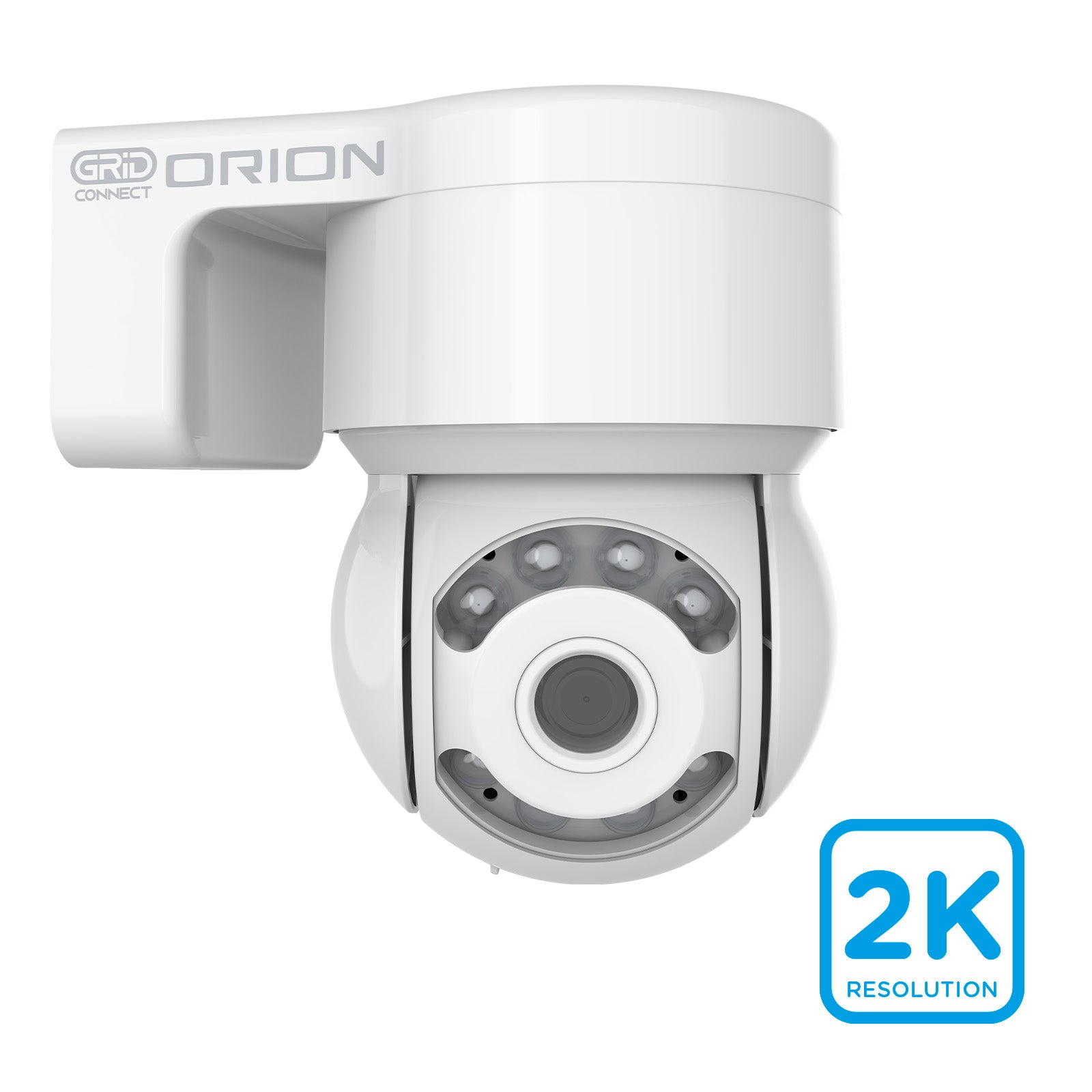
- Do you have an SC030HA camera? Refer to the picture adjacent if you are not sure.
- Check the rating label for a production date in 2024 or earlier. The batch code is printed in format MMYY.
- Your phone must have been set to Pacific/Auckland time when you paired the camera initially. To check this, open the Grid Connect app > open the camera feed > tap the '…' at the top right > then select ‘device information’. Refer to the ‘device time zone’.
- You must have an SD card installed in the camera. Refer to the instructions here if you are unsure of where the SD card slot is on the camera. You are receiving a prompt asking to reformat the SD card, but are unable to do so.
Temporarily Change Your Time-Zone
Set your phone to have the time-zone of ‘Melbourne’. This will be in your phone settings (not the Grid Connect app or camera settings). This will vary depending on your phone’s operating system. You will change this back shortly, so this will not impact your general phone settings.
NOTE: if you have time-zone option as ‘set automatically’ you will need to turn this off temporarily.
Re-pair
Re-pair your camera. Instructions on how to put your camera into pairing mode and then re-pair it can be found here.
Revert Time-Zone Settings
Once the camera is successfully re-paired using the ‘Melbourne’ time zone, you will be able to change your phone time-zone back to your preferred setting. The camera only checks the time-zone from the phone when it is initially paired, so reverting back will have no impact on the camera.
NOTE: The steps above will mean that the time-stamp on your video playback will reflect Melbourne time, so please keep this in mind when referring back to video footage.
October 2025 Update
Whilst we had hoped to be able to provide an over-the-air update to resolve this issue, hardware compatibility has unfortunately meant that isn’t possible. Follow the above steps for resolution.
Alternatively a warranty replacement can be requested through cs@arlec.com.au.