

Collection: Lighting



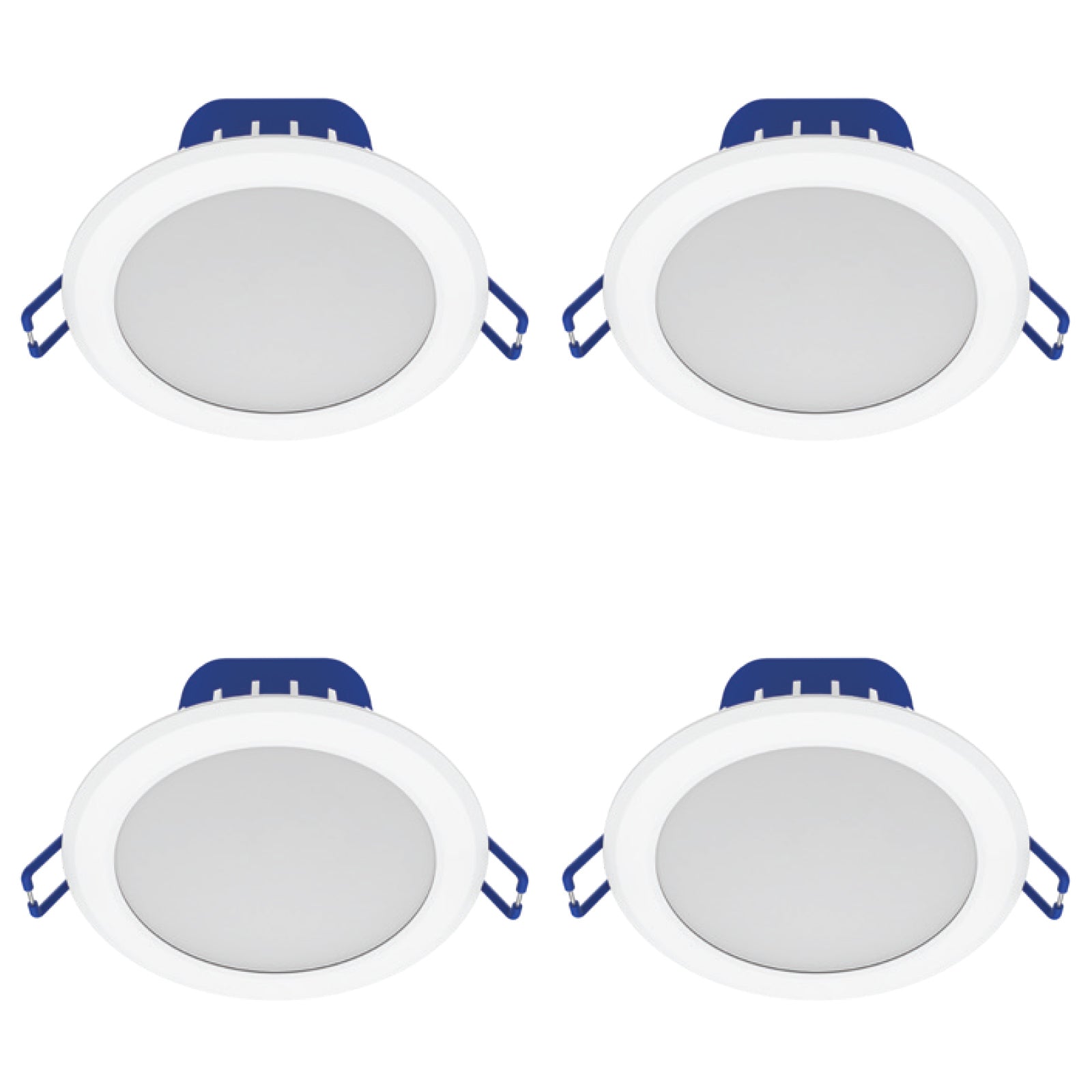
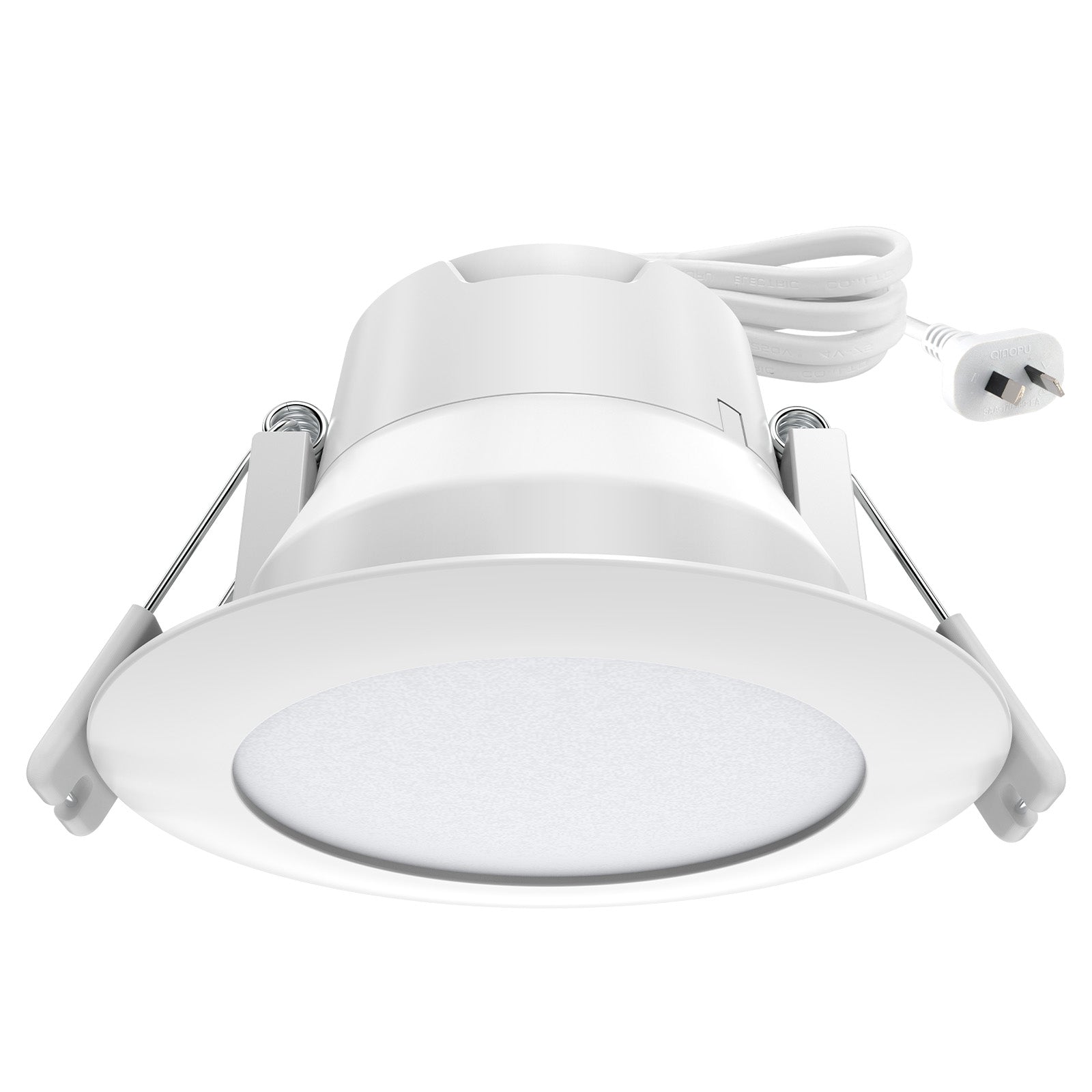

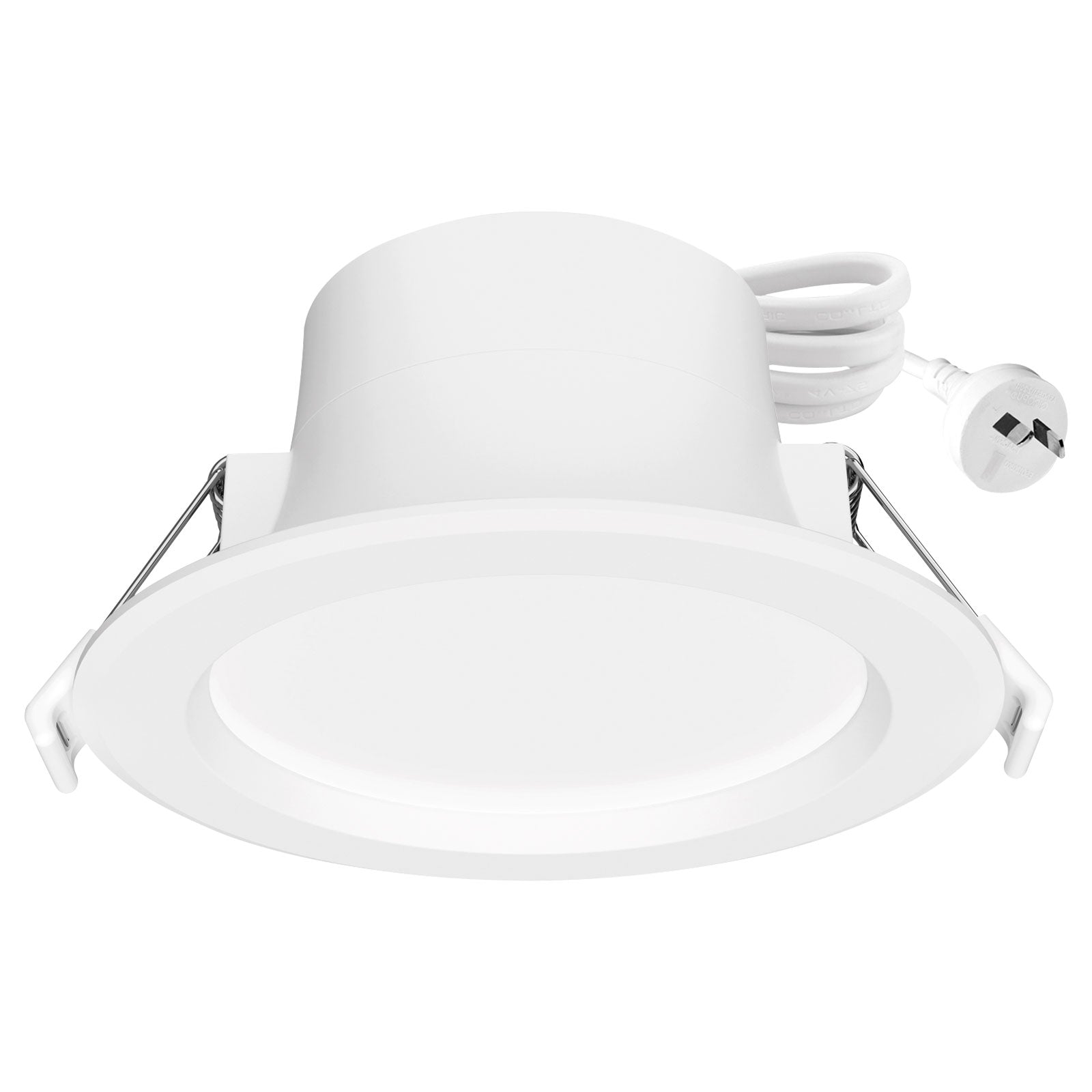
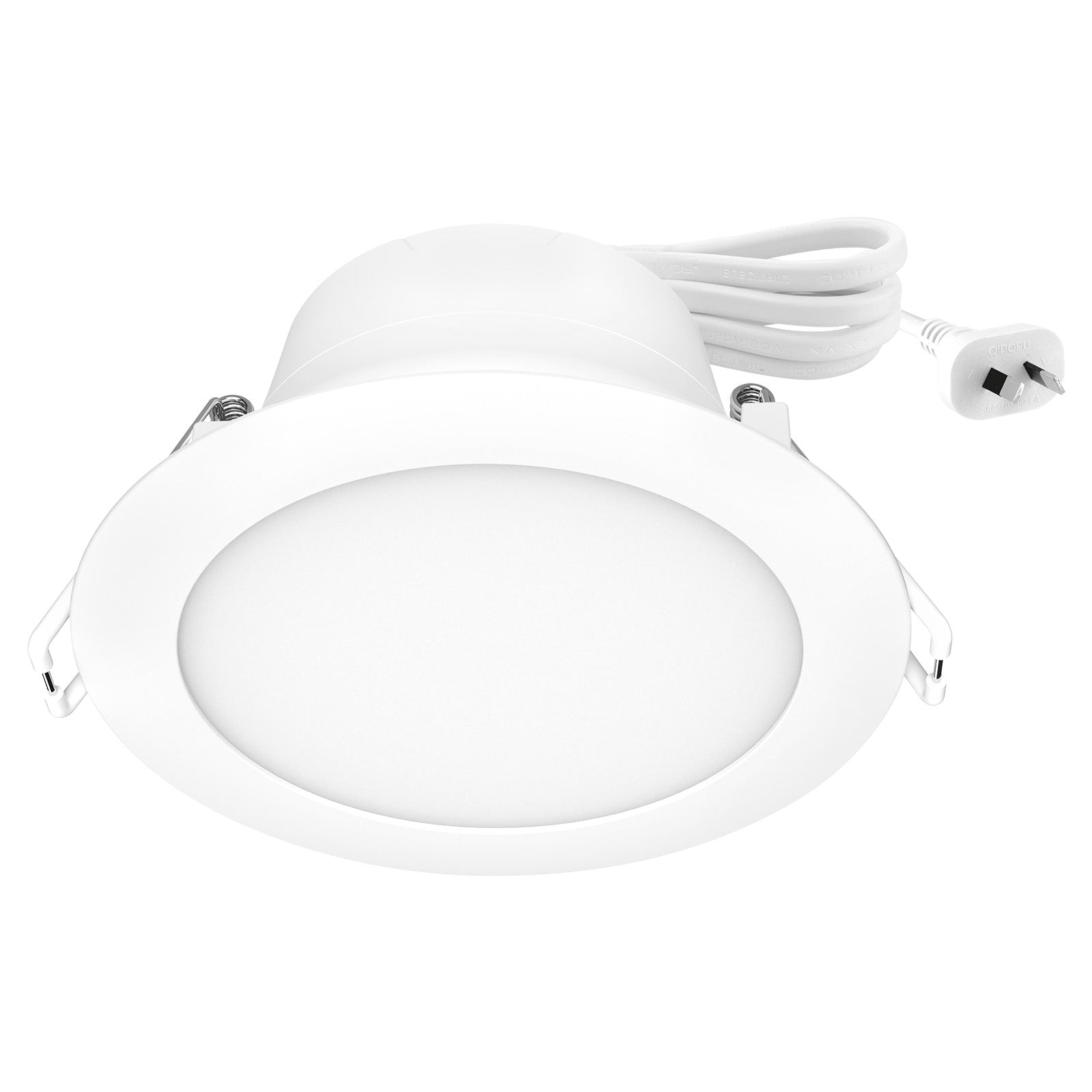
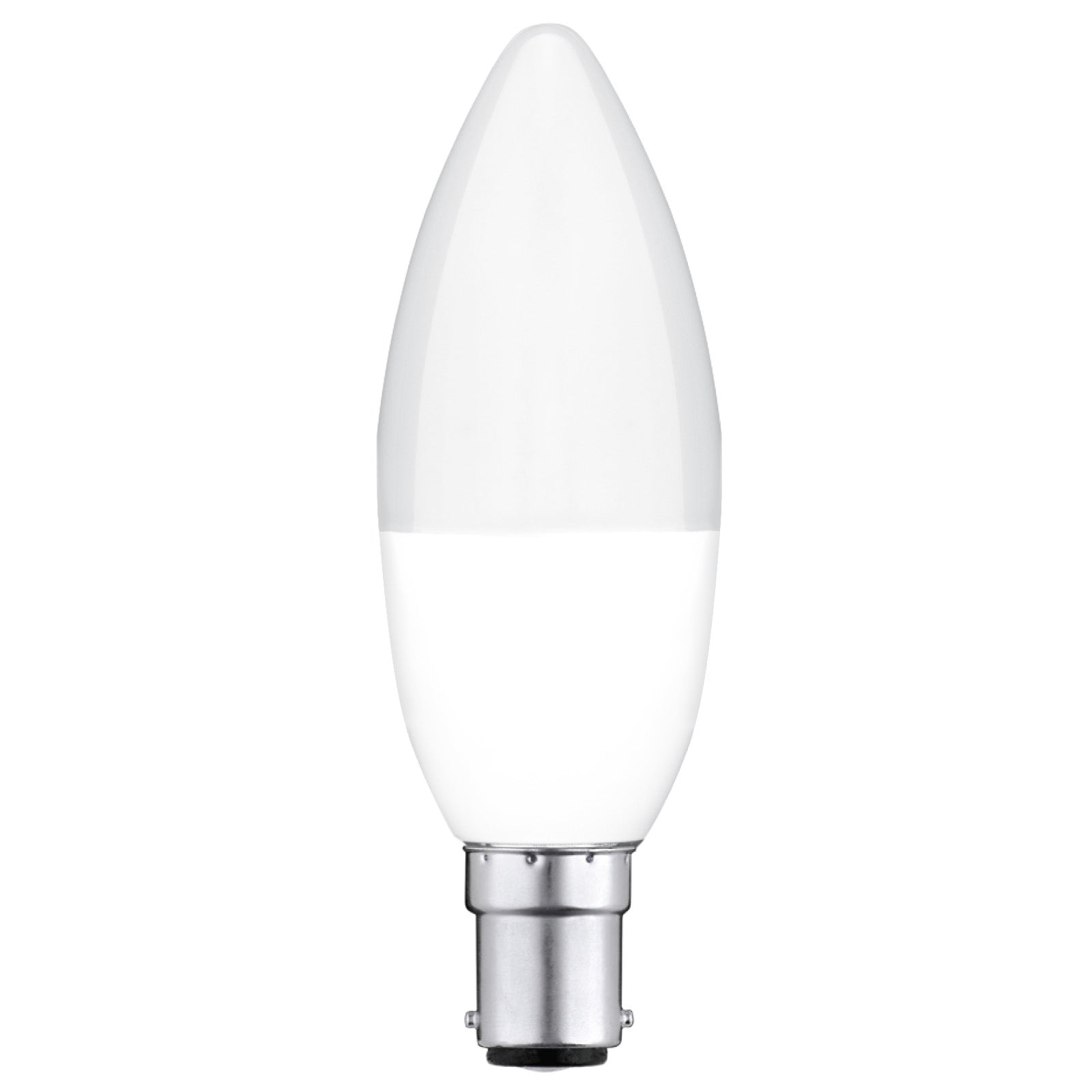
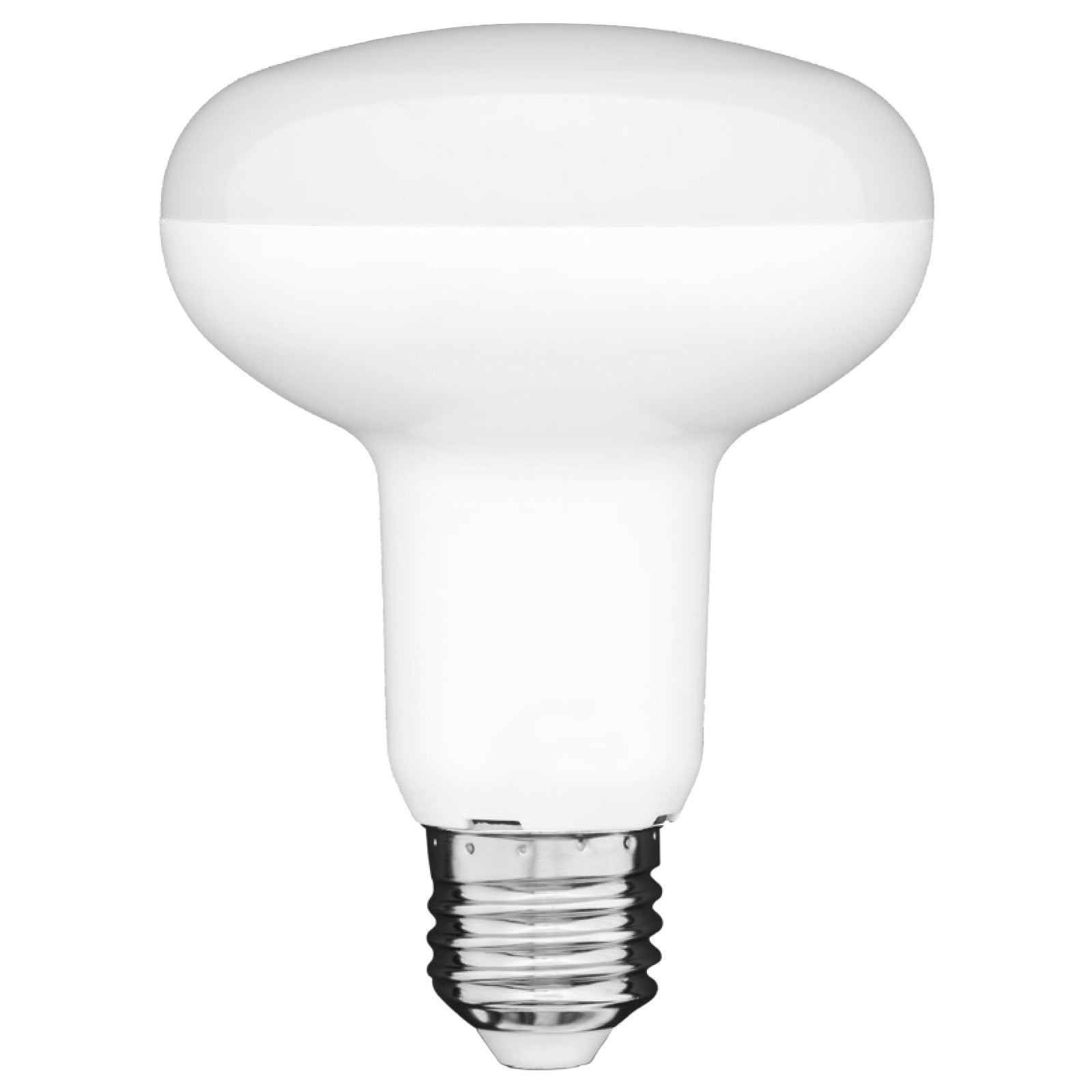
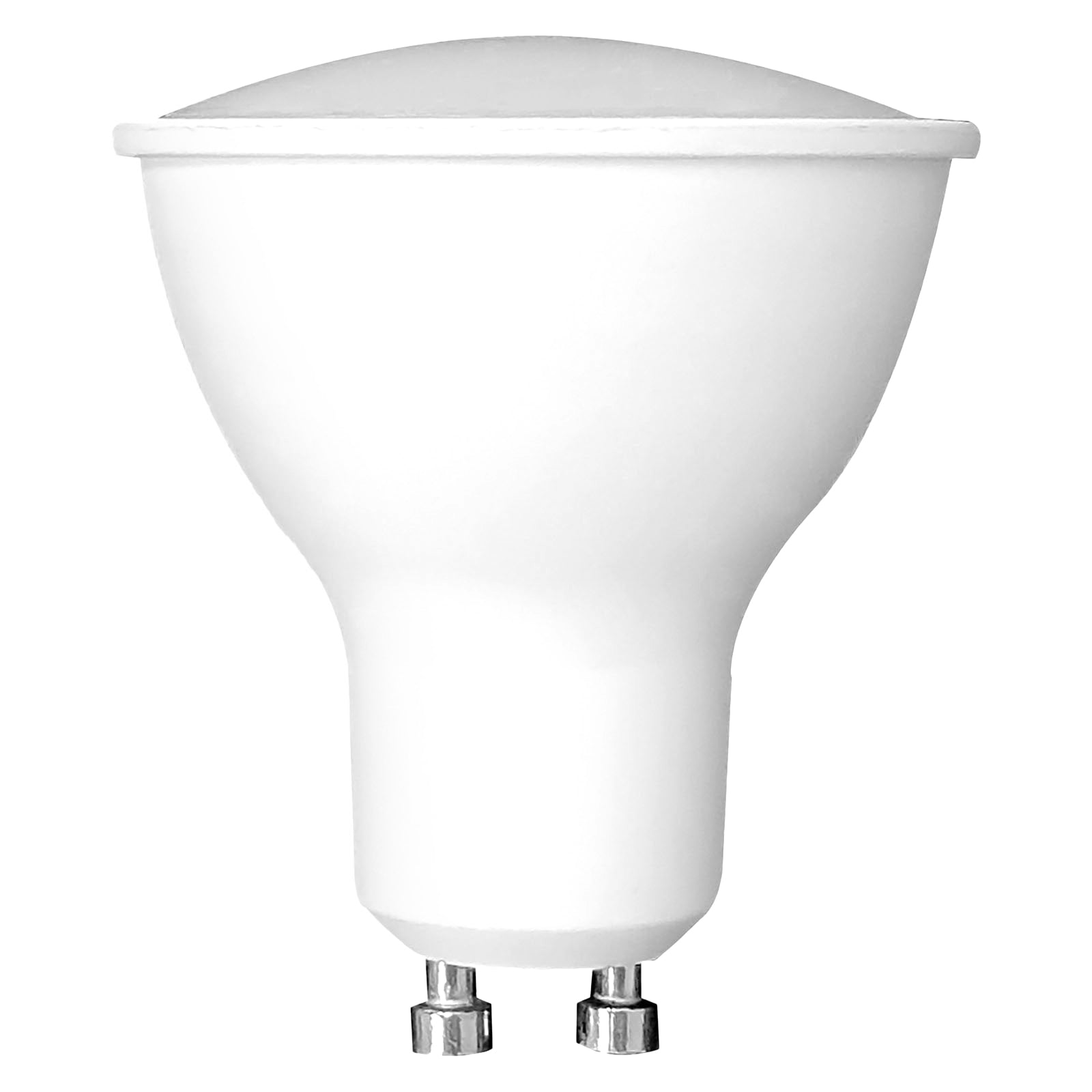
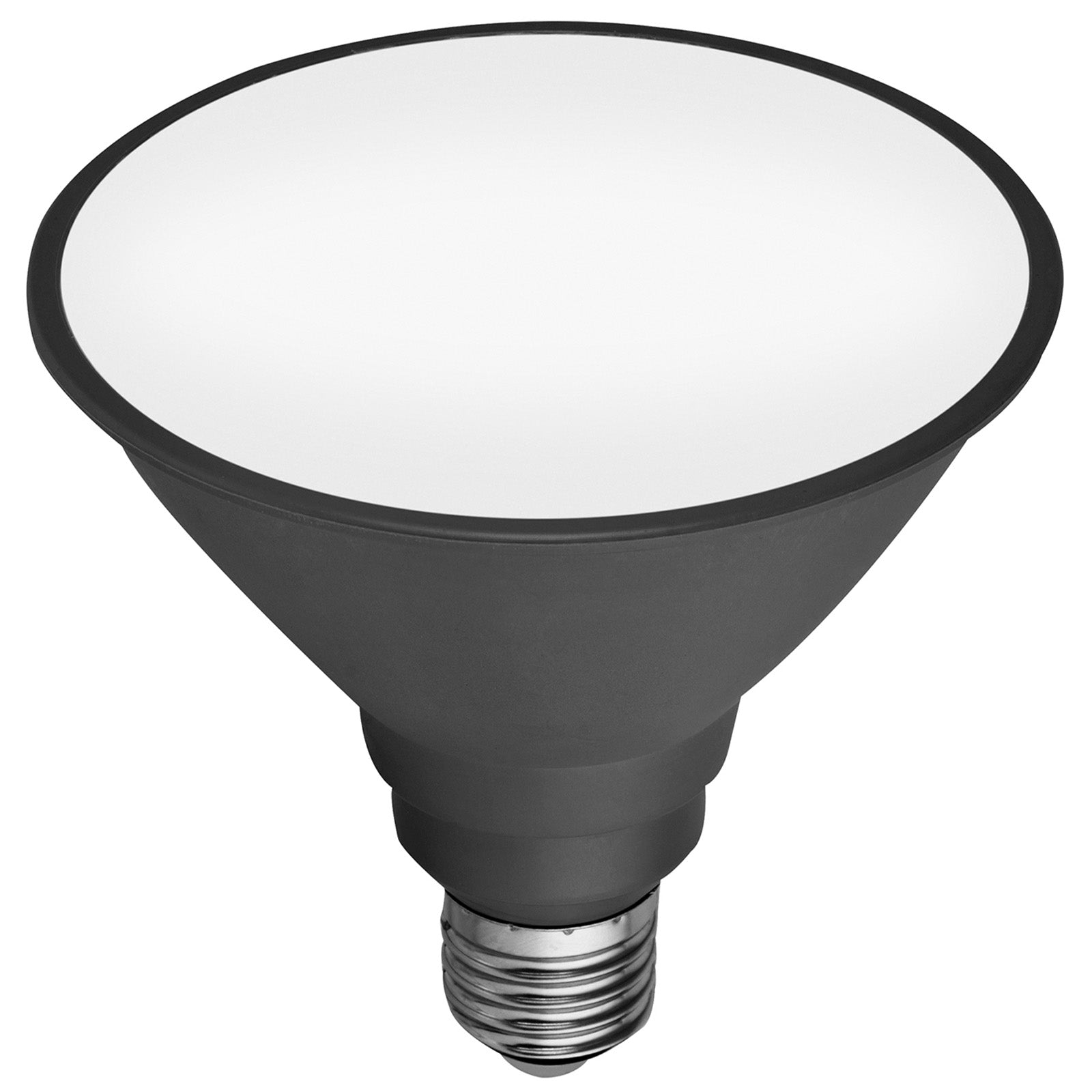
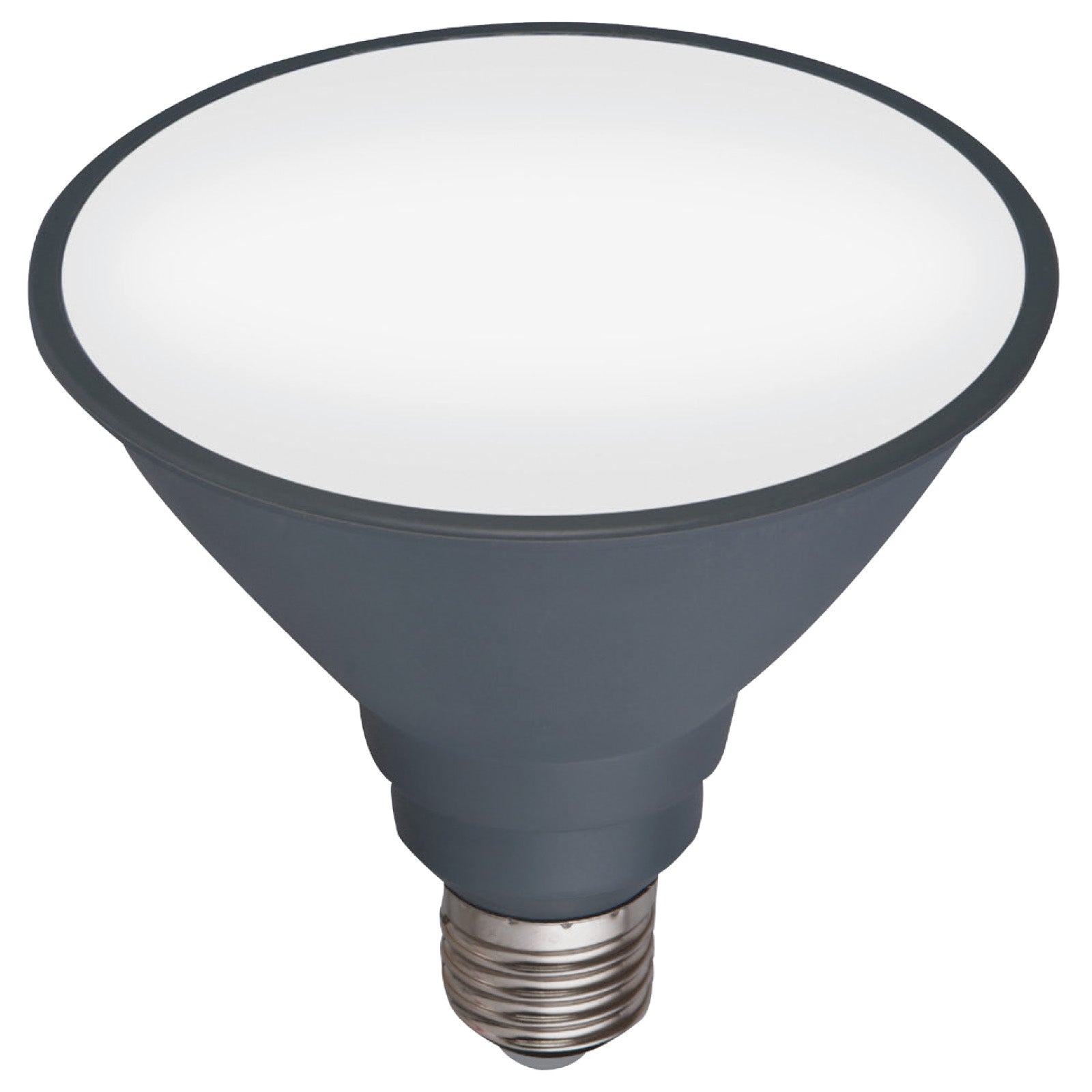
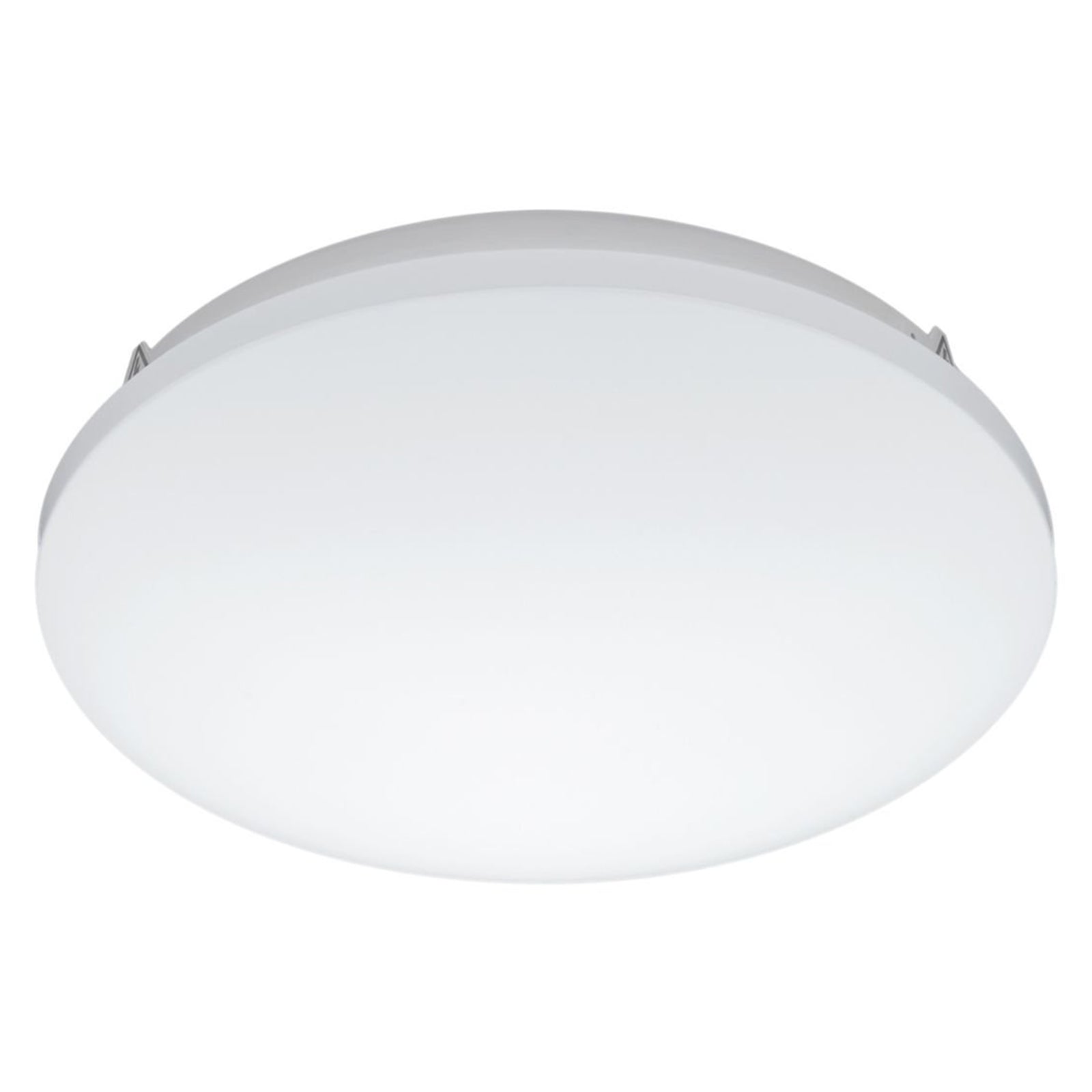

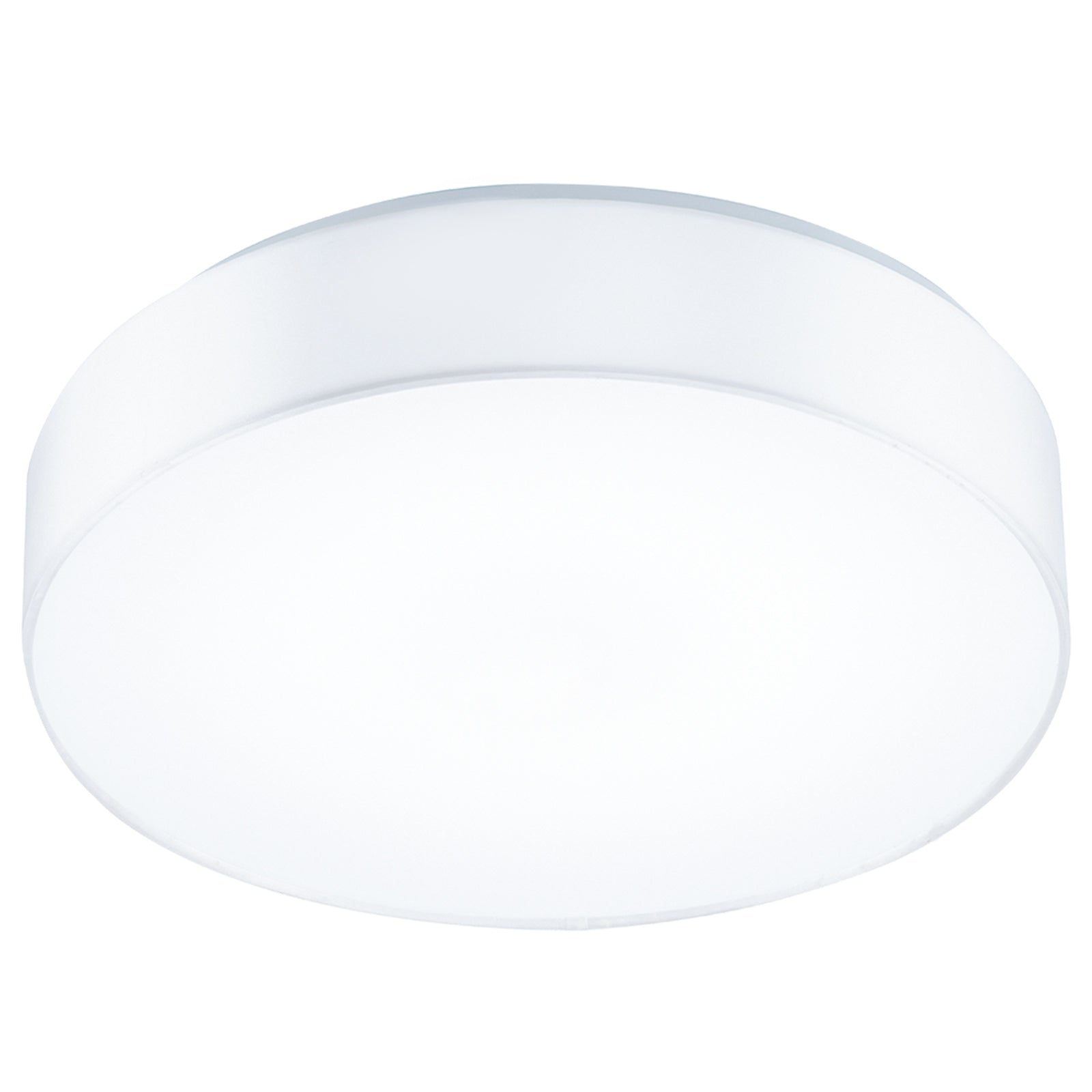
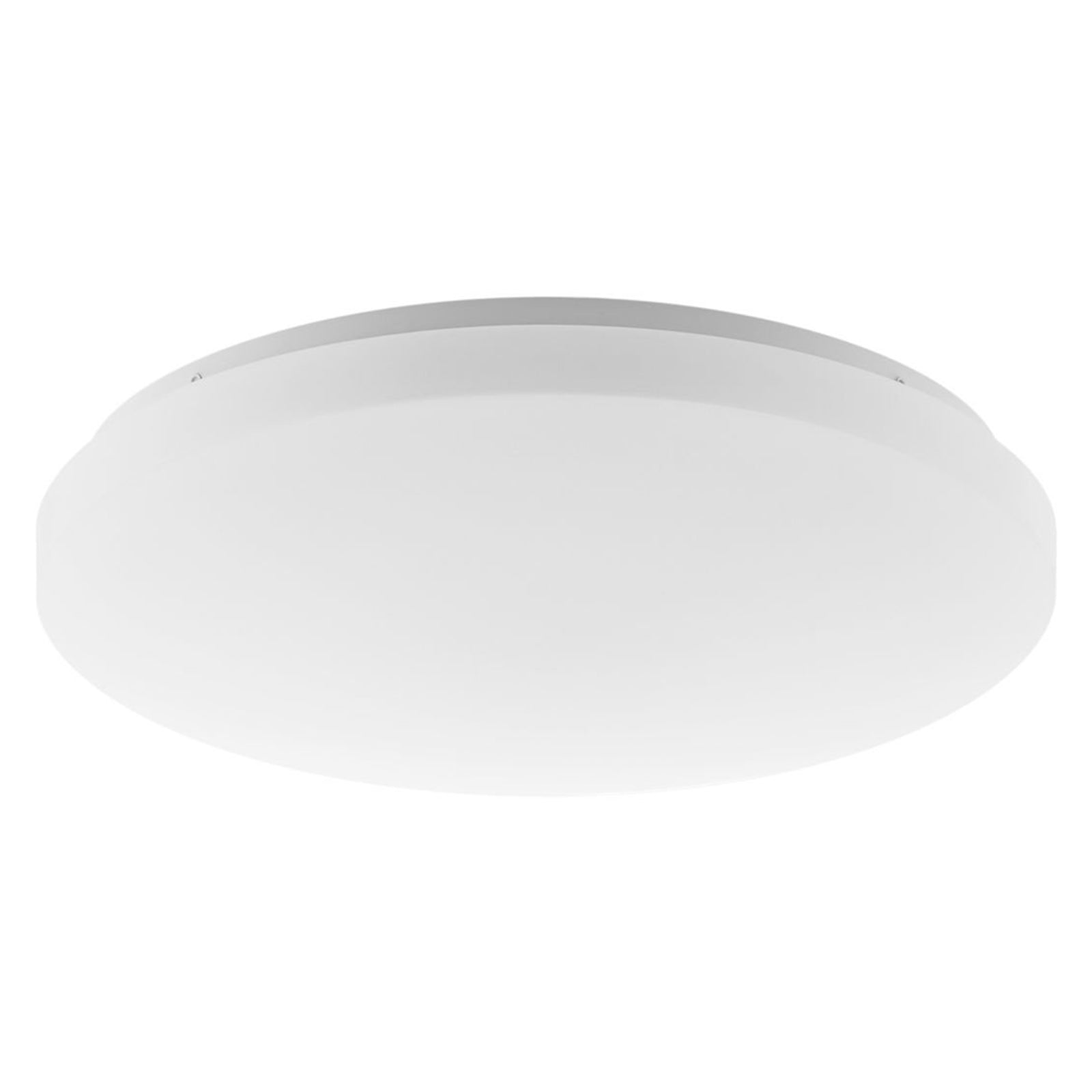
Lighting
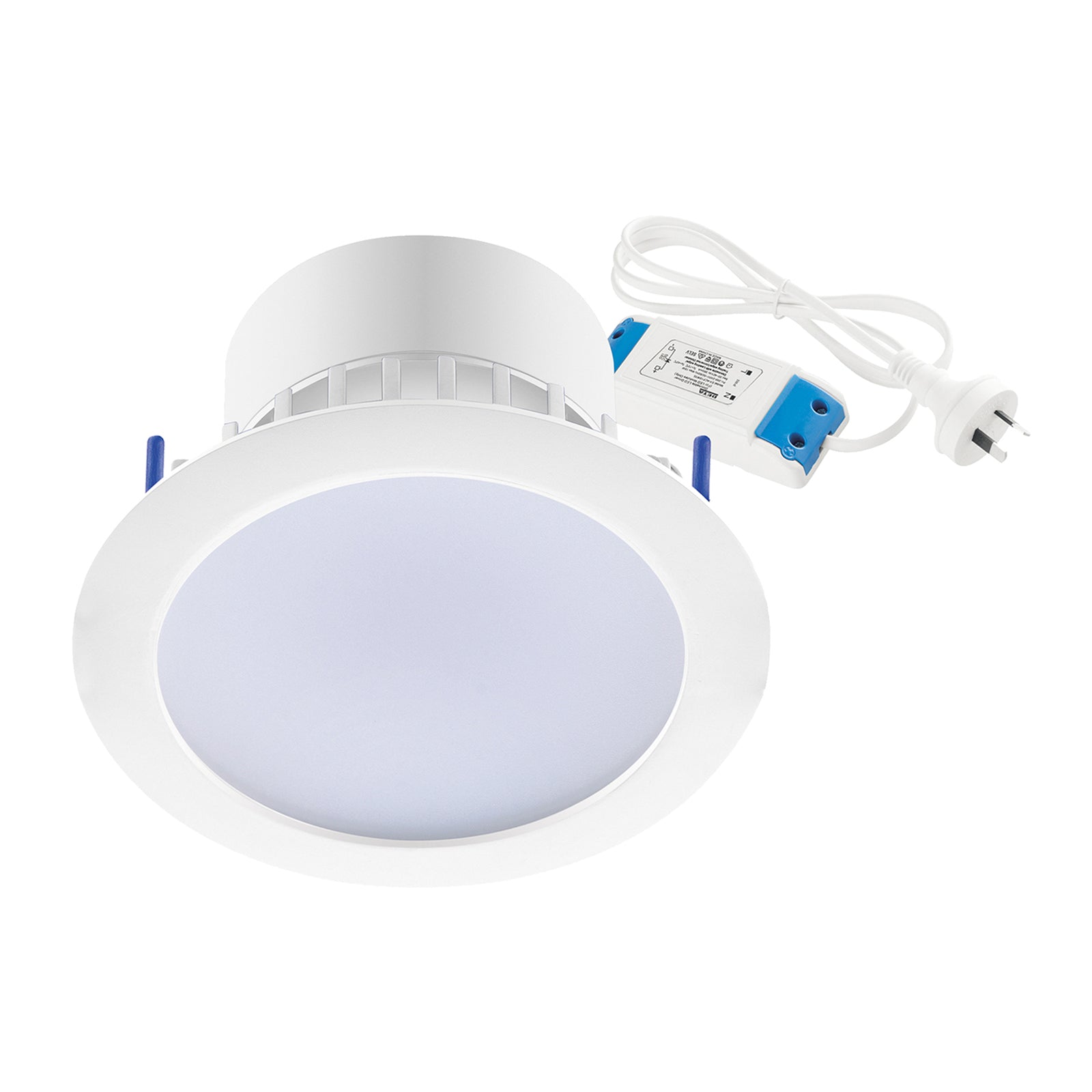
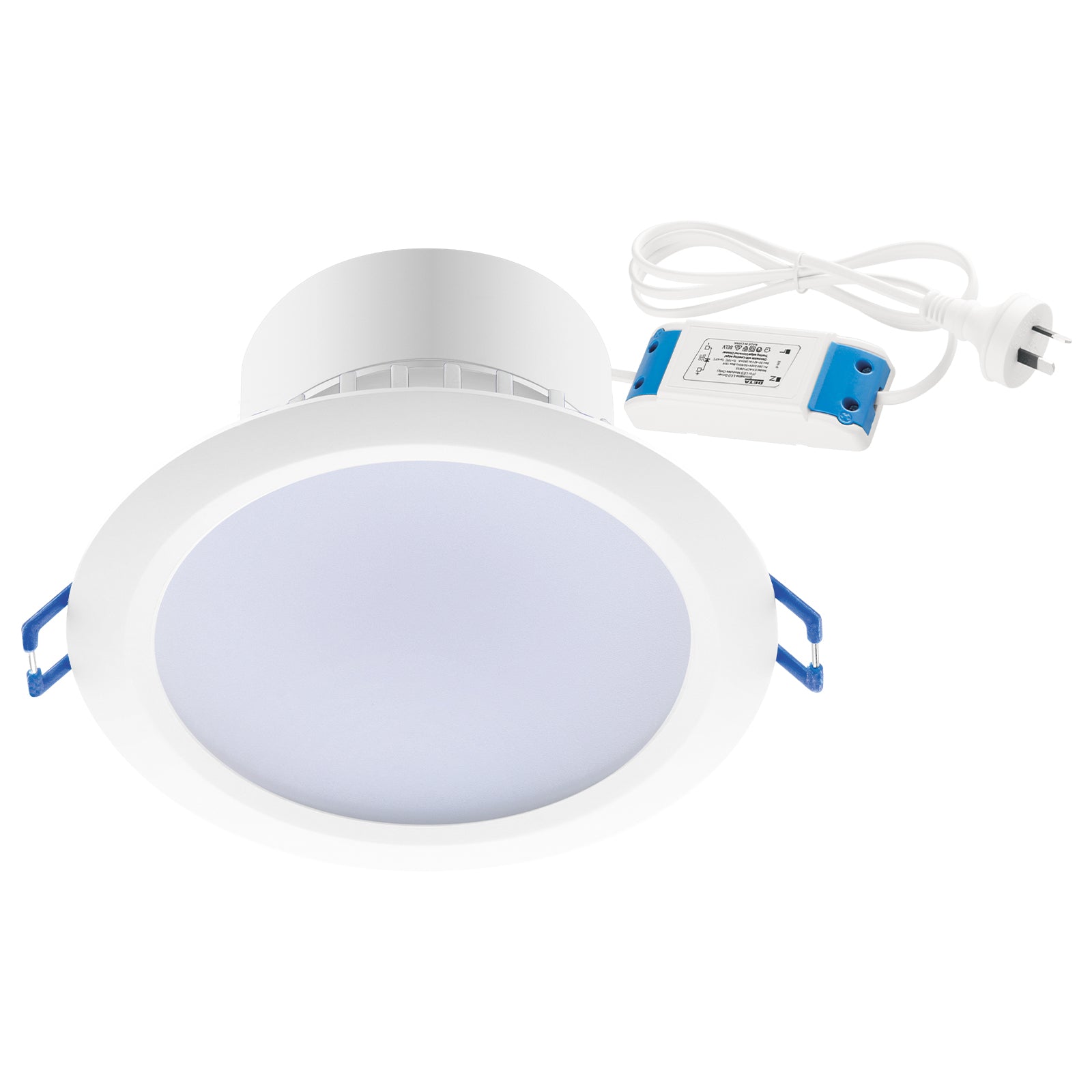
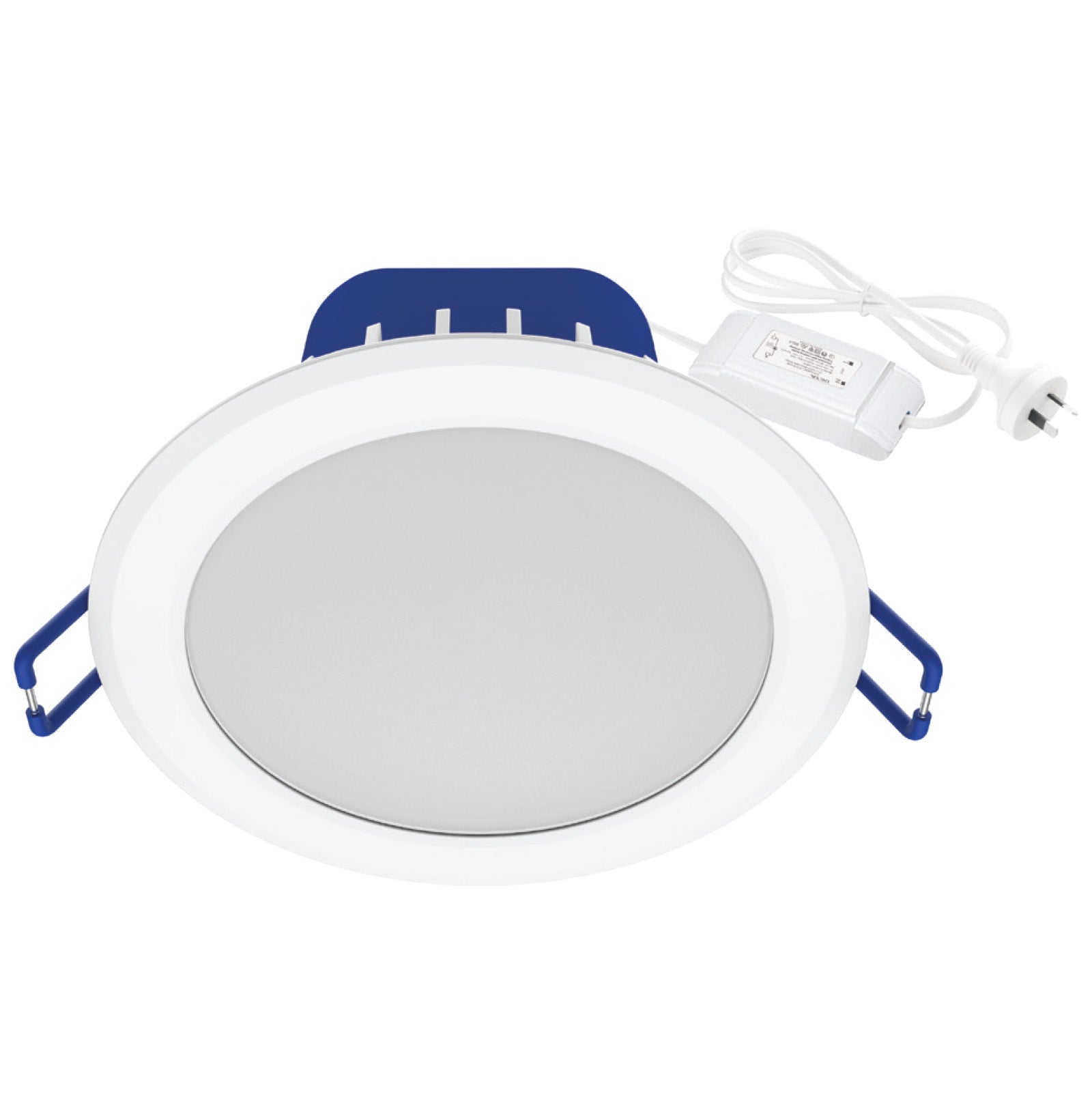
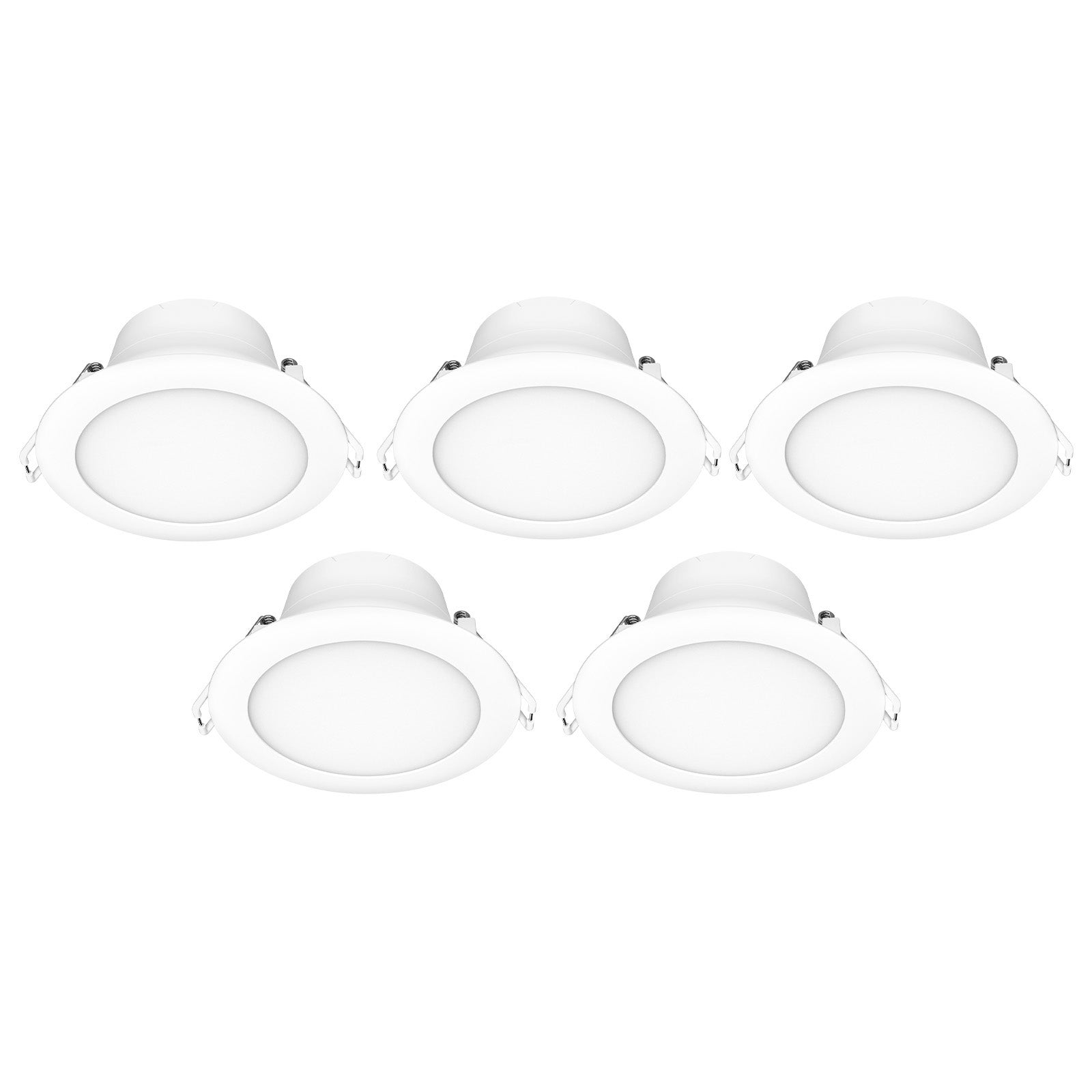
Smart downlights from Grid Connect let you transform your lighting experience with a tap from your phone. Grid Connect smart downlights give you the latest lighting technology, at an affordable price. Users can colour match their smart downlights to every scenario. Set your downlights to crisp cool white lighting in the morning to help you wake up, whilst a relaxing sunset orange is ideal for winding down in the evening. Set automatic schedules such as turning on your smart downlights at night. All of this can be done on with a Grid Connect smart downlight and the Grid Connect mobile app.
Grid Connect smart downlights are controlled through your home's Wifi network. Easily set up and control your smart downlights with the Grid Connect mobile app, which is available on iOS and Android.
Yes. If your smart phone has internet access (either Wi-Fi or 4G), and your Grid Connect devices are connected to the internet, you can control your devices regardless of location.
There are no safety issues with doing this, but it is not recommended. A smart product needs constant power so that it can be controlled whenever prompted by the app. If it doesn’t have power (such as if the normal switch is off) it won’t be able to connect to the app and will appear as offline.
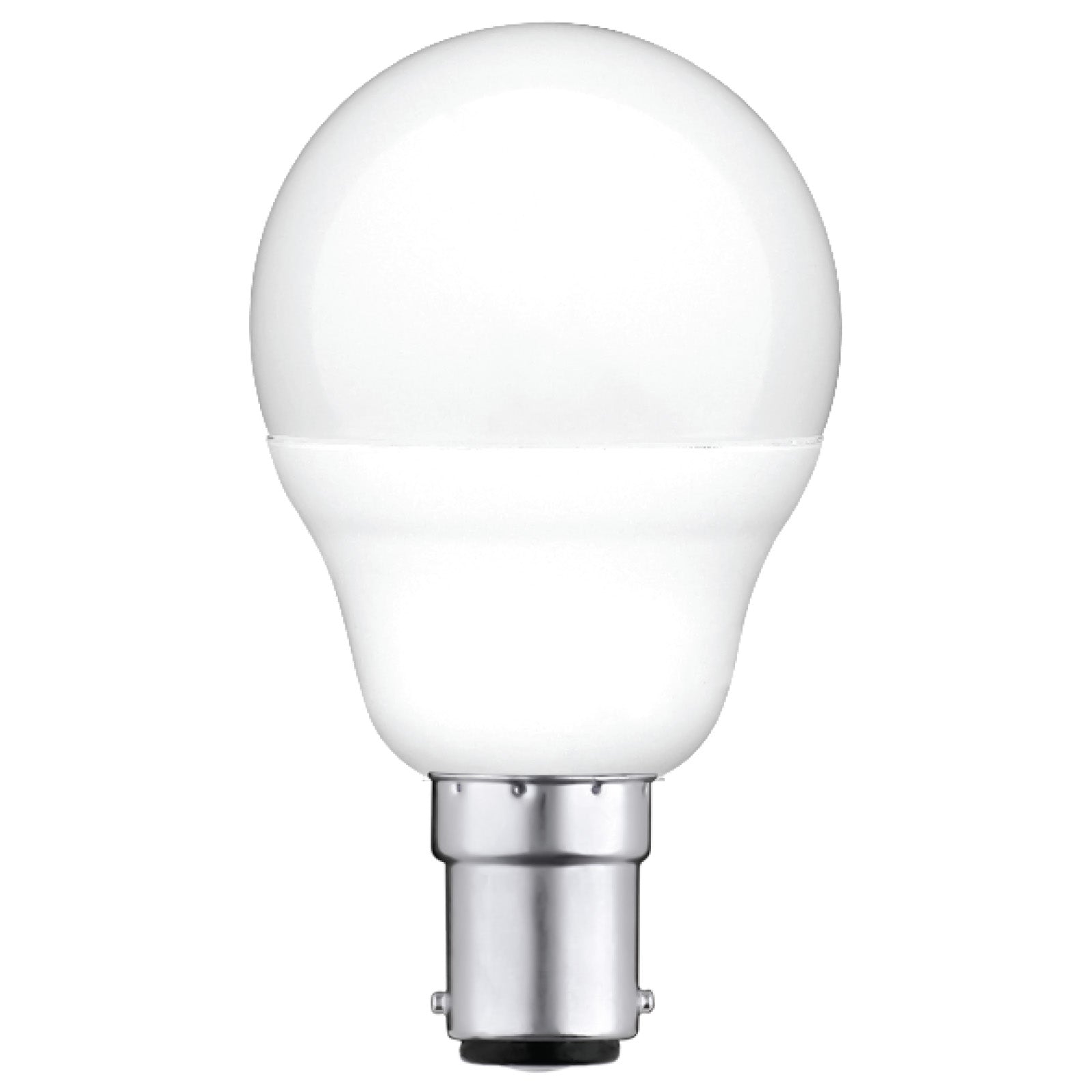
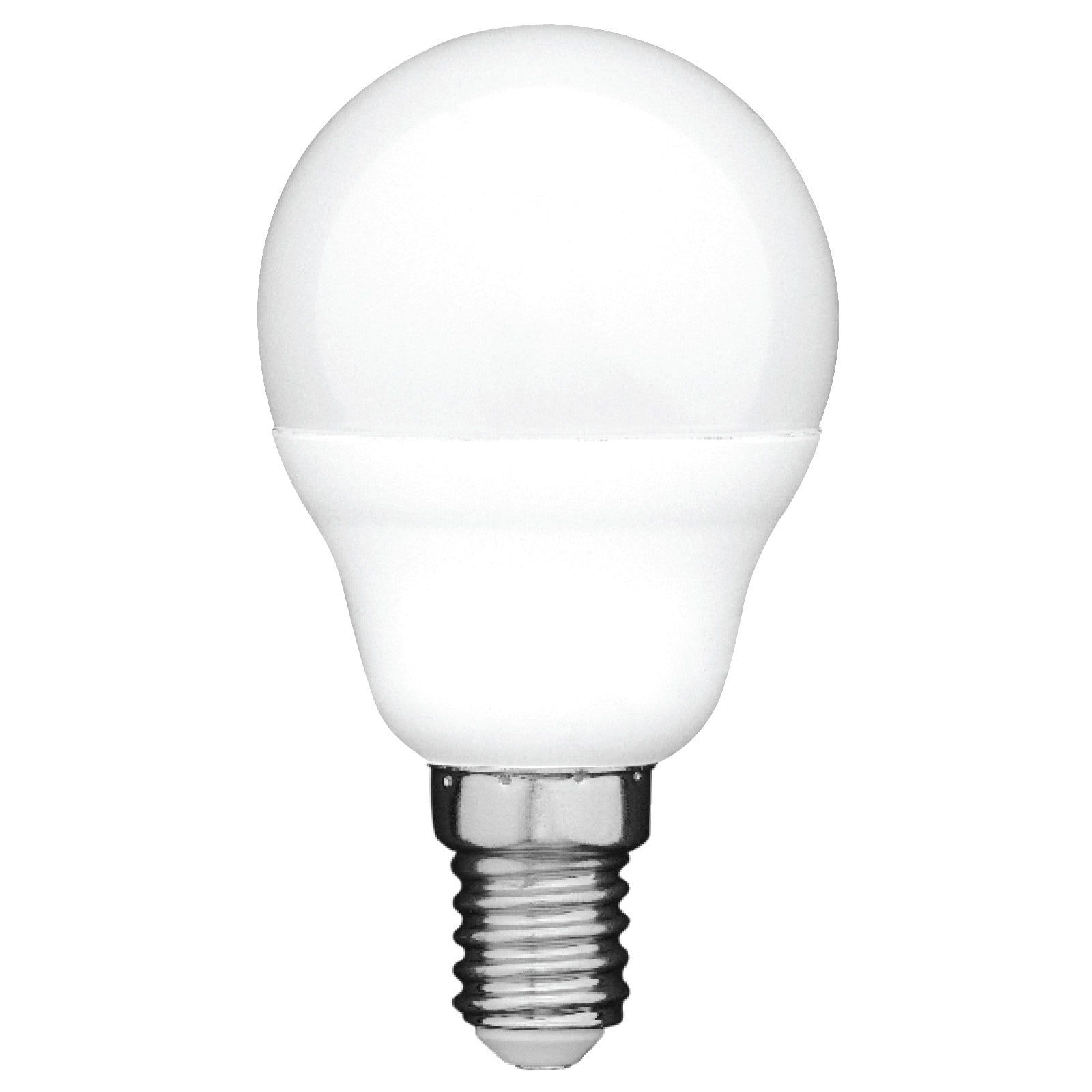
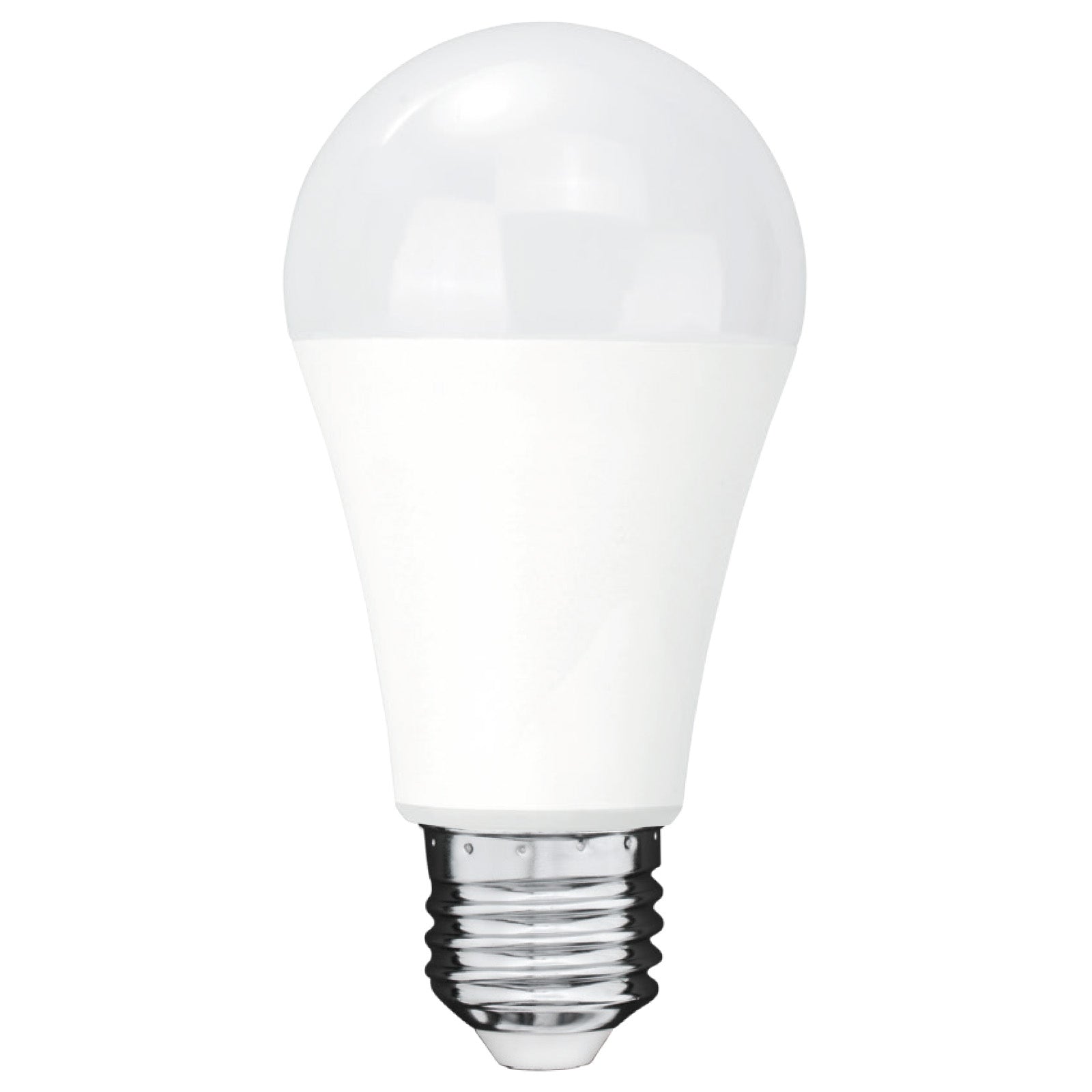
There are no safety issues with doing this, however functionality of the smart globe will be affected. Standard wall dimmers work by changing the voltage waveform applied to the load, which for standard lighting, results in the dimming effect. However for a smart globe, this will also affect the smart electronics inside the smart globe, which may affect functionality. Grid Connect recommends using the smart globe's in-app dimming feature to dim your lights.
Grid Connect smart lights that feature RGB function can show the full RGB spectrum with more than 16 million colours. This can be adjusted when your Grid Connect smart lights are paired to the Grid Connect mobile app. Scenes and presets allow you to quickly switch between your favourite colours. Certain Grid Connect RGB globes have the ability to pulse and change colour in time with your music. Using the 'Schedules' feature in the Grid Connect app, alows you to schedule automatic colour change at various times of the day to fit your schedule. In summary, Grid Connect RGB lights allow you to customise every space to precisely fit your mood, occasion or style with over 16 million colours at your fingertips.
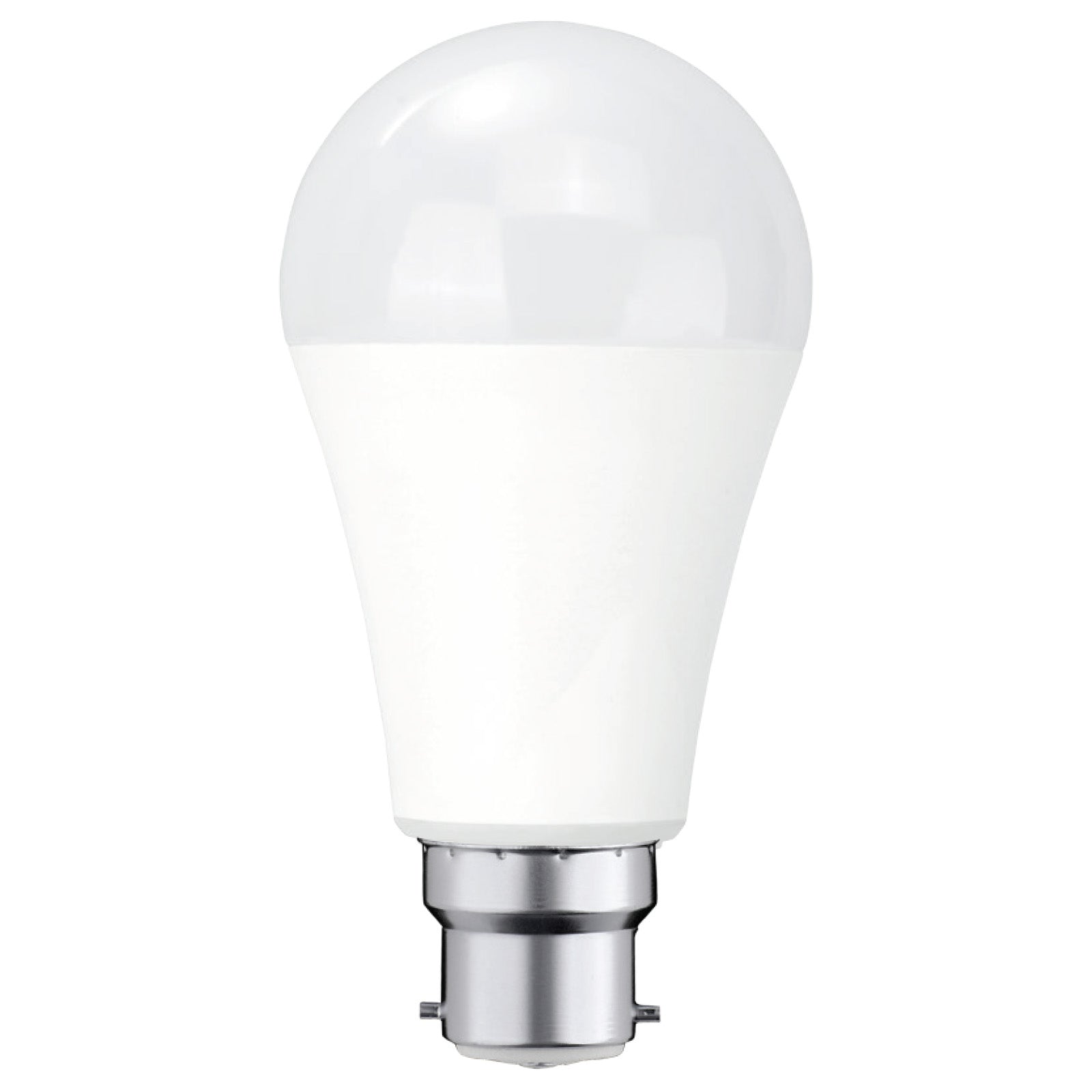
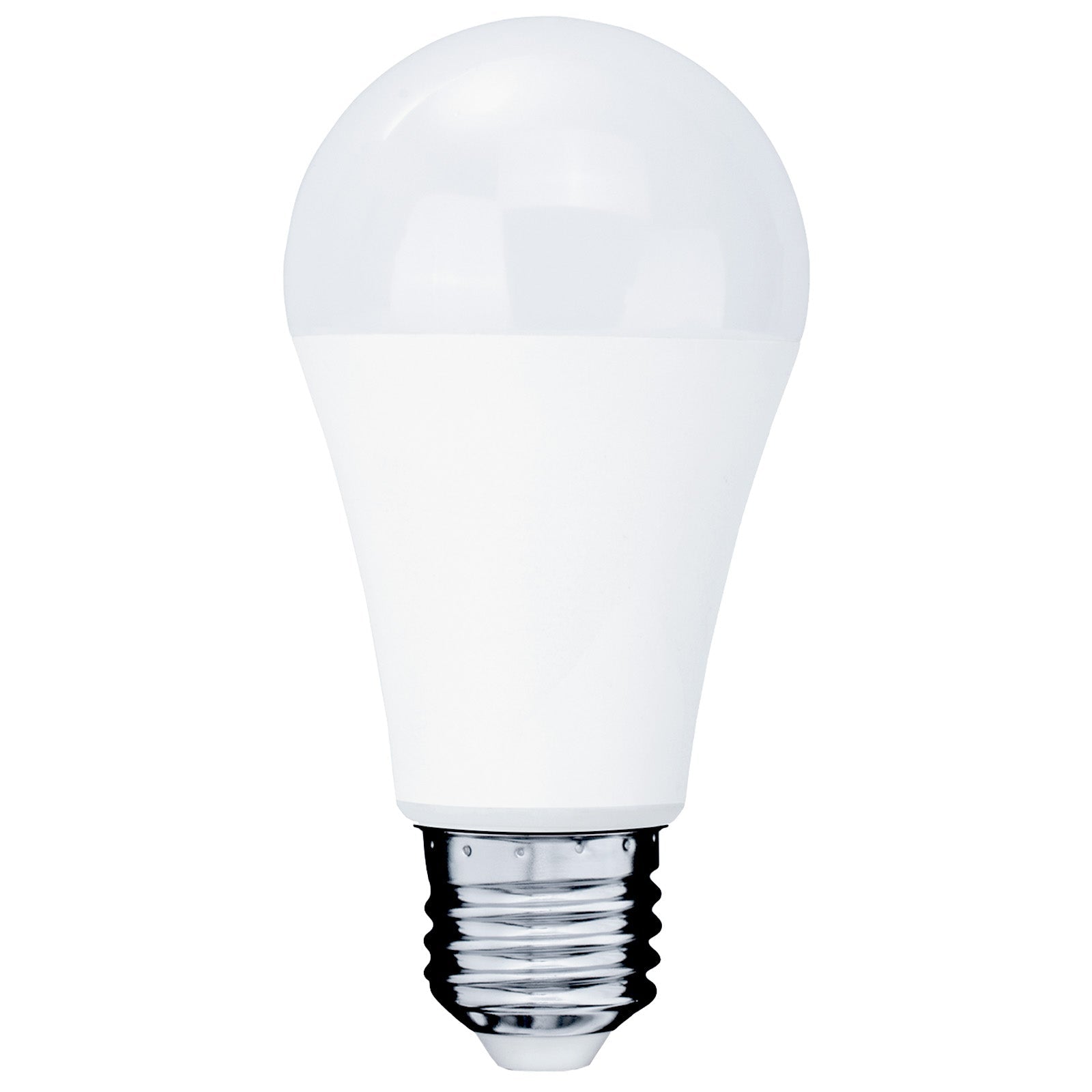
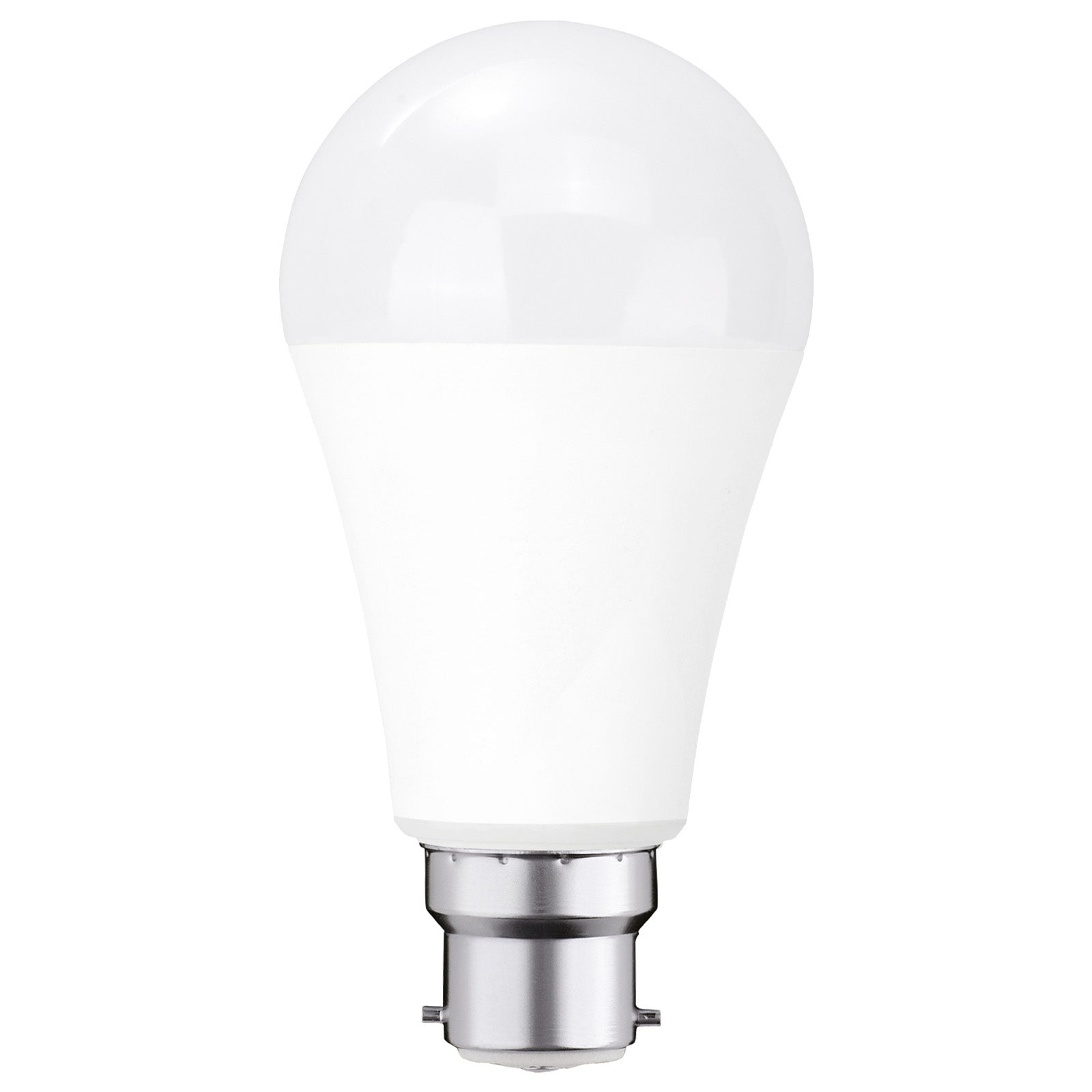
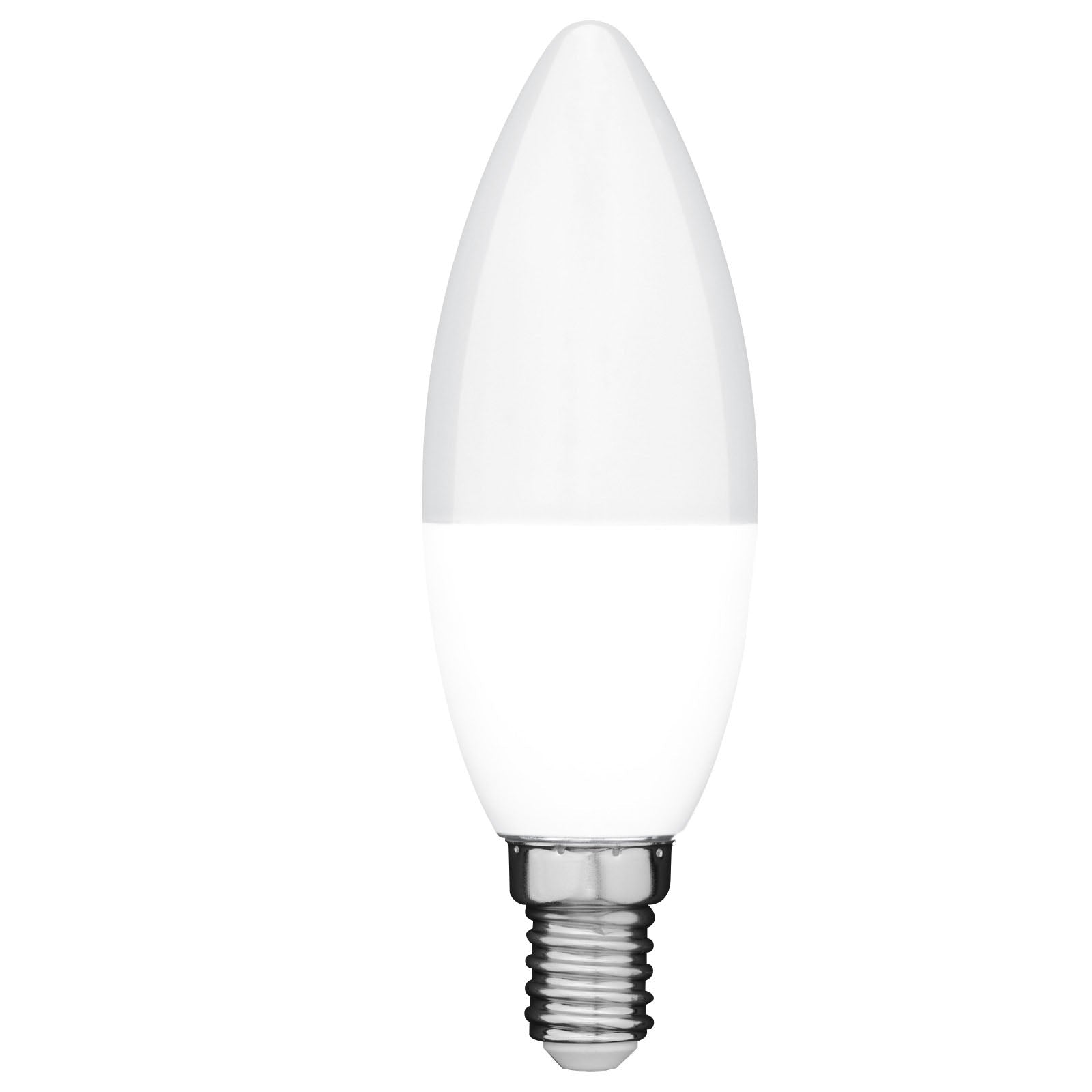
Grid Connect smart lighting has you covered for every situation. Upgrade your home with Grid Connect smart globes and downlights in all standard sizes. Level up rooms with our immersive strip and decorative lighting range. Illuminate your garden with Grid Connect outdoor garden and bunker lighting. Finish projects under our smart batten, undercabinet and ceiling lights. Festive season coming soon? Grid Connect have got you covered, with our smart string, festoon and wall washing lights. All controllable with the Grid Connect mobile app.
The Grid Connect app on your smartphone is the only way to set up schedules and automations for your Grid Connect smart lights. This is a straightforward step-by-step tutorial:
- To access automation, tap the menu icon in the Grid Connect app.
- Tap 'Scenes and Automation' and then select '+'.
- Choose a condition from the menu (anything but tap-to-trigger).
- You can set up to 10 conditions and select whether any or all of the conditions must be met to activate the automation.
- Select 'run the device' and then find the device you want to activate. The options available depend on the individual products’ functionality.
- Follow the on-screen prompts until you get to the 'setup your scene' page. From here you can choose to add more actions by tapping the + icon beside action.
- Adjust the 'activate period' if you don’t want the automation occurring all the time. This can be used so that an automation only happens at certain times (such as after dark) or particular days of the week (such as your work days).
- Tap 'save' to finish your automation.
- You can disable the automation, without deleting it, by swiping the toggle switch. This is useful if you go on holiday and don’t need your usual automations.
Additionally, you can connect your Grid Connect account to Google Home or Amazon Alexa to enable hands-free automation control. Link your Grid Connect account under connected apps when you launch Google Home or Alexa. Make routines directly in Alexa or Google Home, for instance. Good morning at 7 am, the lights gradually brighten. Saying good night turns off all of the lights. Leaving causes the lights to automatically turn off.Useful Advice for Optimising Automations and Schedules
- Natural changes: Use sunrise/sunset triggers instead of set times to change lighting with seasons.
- Stacking: Layer several automations together, like dimming at 8:00 PM and turning off at 10:30 PM.
- Naming: Give your devices clear names like "Living Room Lamp" instead of "Device 1".
- Testing: Test your schedules once they are set up to ensure proper activation.
- Grouping: Group lights in the app to automate entire rooms instead of separate globes.
The allure of Grid Connect smart lighting is that once your automations and schedules are set up, your home lighting takes care of itself, saving energy, enhancing security, and slightly simplifying daily life.For more information on automation, visit our App Guide: How to Automate Your Devices